# Test the data synchronization

### SlapFive Request submitted from a Salesforce Opportunity creates/updates SlapFive Customer Influence in Salesforce

* [ ] In Salesforce, go to an Opportunity, click the **Request References** button, fill out the **New Request** form, and click the **Submit** button.
* [ ] In SlapFive, go to the **Requests** tab, and you will see the new Request in the New column.
* [ ] In Salesforce, go back to the same Opportunity, go to the **SlapFive Customer Influence** related list, and you will see a new **SlapFive Customer Influence** record for that Request.&#x20;

<figure><img src="https://2901117923-files.gitbook.io/~/files/v0/b/gitbook-x-prod.appspot.com/o/spaces%2FlkxMKaLwhXP9Cu98jtv6%2Fuploads%2FF6RMFS1EpgSQtXChMzV5%2FScreenshot%202023-01-27%20173100.png?alt=media&#x26;token=601f6131-f4ec-429a-a2e8-330de633a6ec" alt=""><figcaption><p>SlapFive Customer Influence related list on the Opportunity</p></figcaption></figure>

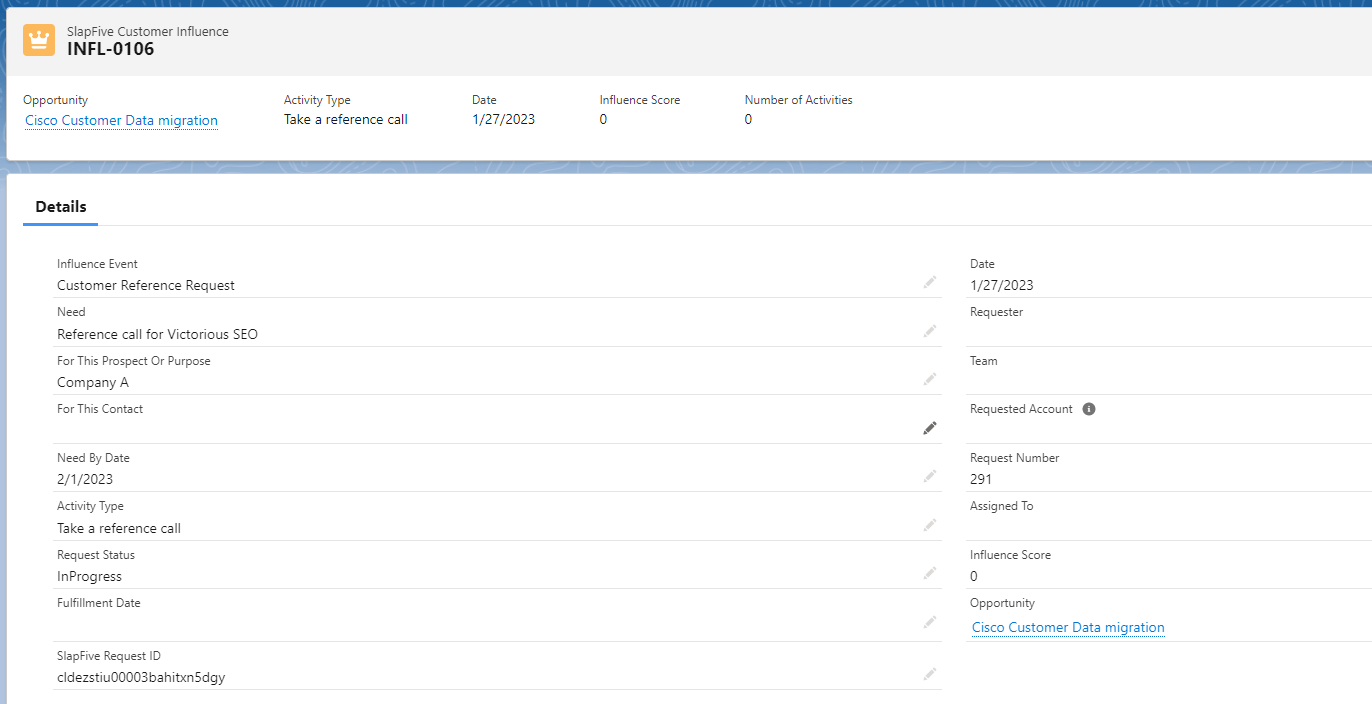
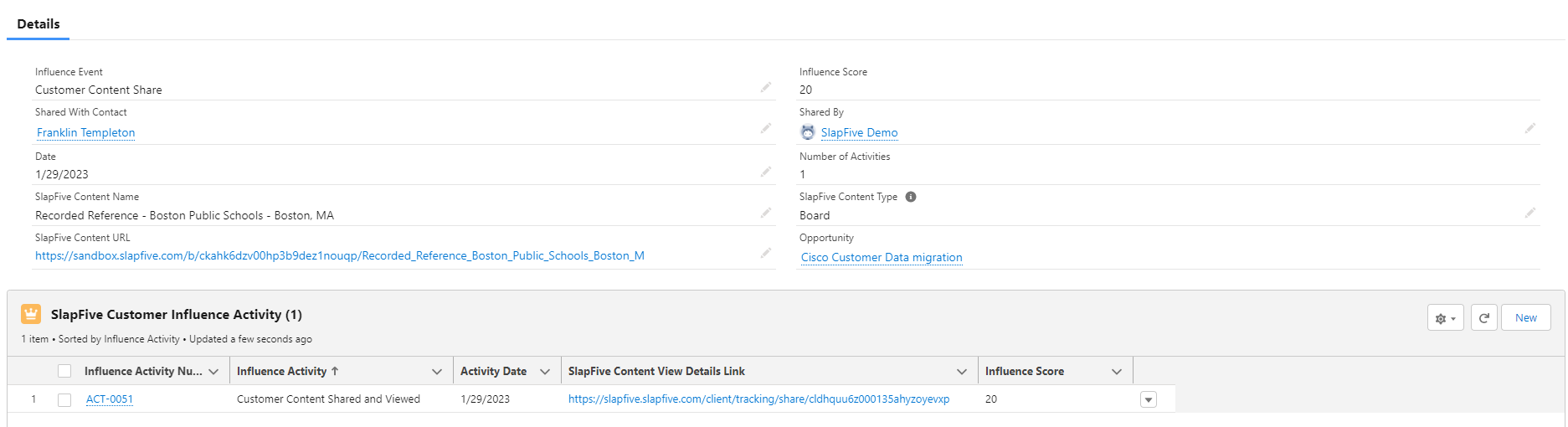
* [ ] Click the **Number** of the **SlapFive Customer Influence** record, and you will see the Details screen for that record. Verify that all the fields you entered into the Request show on this screen.

<figure><img src="https://2901117923-files.gitbook.io/~/files/v0/b/gitbook-x-prod.appspot.com/o/spaces%2FlkxMKaLwhXP9Cu98jtv6%2Fuploads%2FiEwyucpcxwAFmqsSFTCK%2FScreenshot%202023-01-27%20173327.png?alt=media&#x26;token=7b615907-d882-4ab6-bf60-0e1820387790" alt=""><figcaption><p>Details screen for SlapFive Customer Influence record for a Request</p></figcaption></figure>

* [ ] In SlapFive, drag the new Request to the In Progress column, and update some fields that you didn't fill in when you created the Request, like Team or Assigned To.

### SlapFive Fulfillment Member creates/updates SlapFive Customer Influence Activity in Salesforce

* [ ] In SlapFive, go to the **Requests** tab and open the Request from the previous test.
* [ ] Click the **Select Companies/Members** button to add Fulfillment Members to the Request, select a **Fulfillment Status** and **Date** for each one, and click the **Save and Close** button.
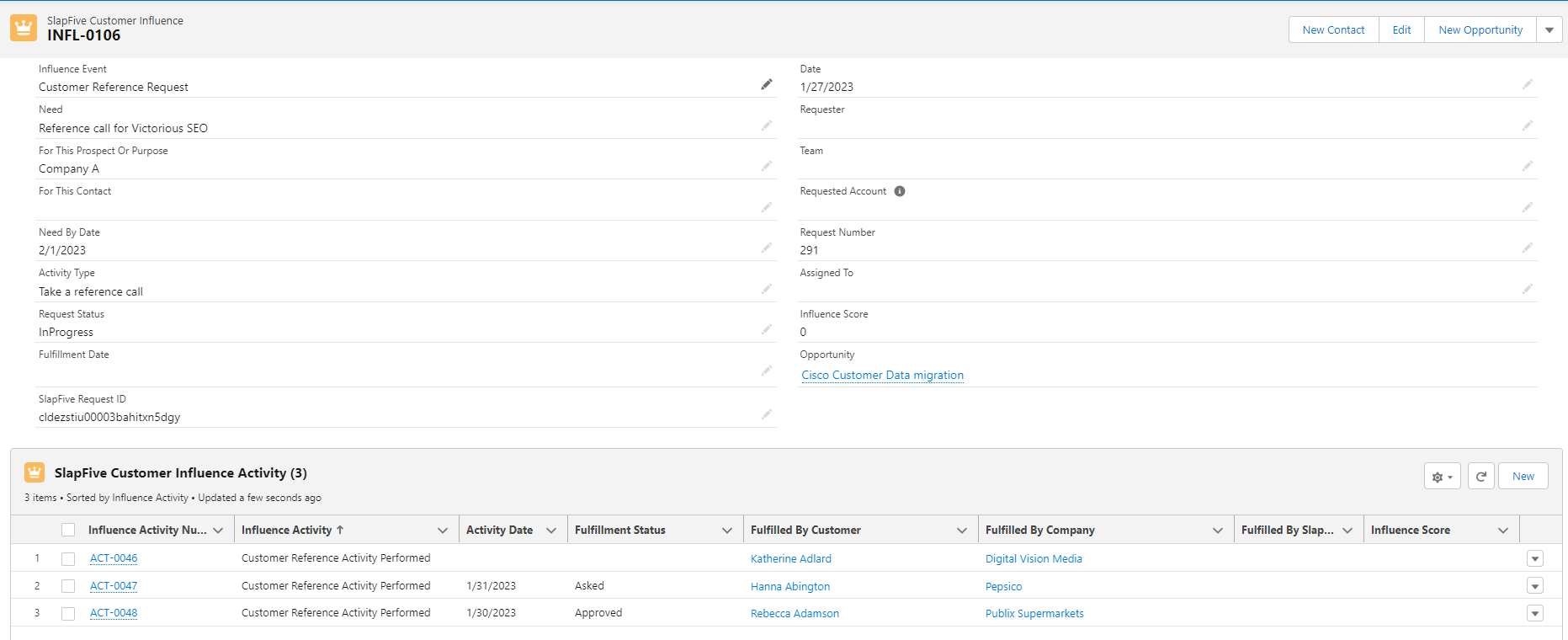
* [ ] In Salesforce, go to the **Details** page for the **SlapFive Customer Influence** record from the previous test, and you'll see a record for each Fulfillment Member in the **SlapFive Customer Influence Activity** related list at the bottom of the screen.

<figure><img src="https://2901117923-files.gitbook.io/~/files/v0/b/gitbook-x-prod.appspot.com/o/spaces%2FlkxMKaLwhXP9Cu98jtv6%2Fuploads%2F1bmlnU4nEZ5MHPCNVBdP%2FScreenshot%202023-01-27%20174351.png?alt=media&#x26;token=bc87d201-e17c-48f8-9728-18ca5d15e698" alt=""><figcaption><p>SlapFive Customer Influence Activity related list</p></figcaption></figure>

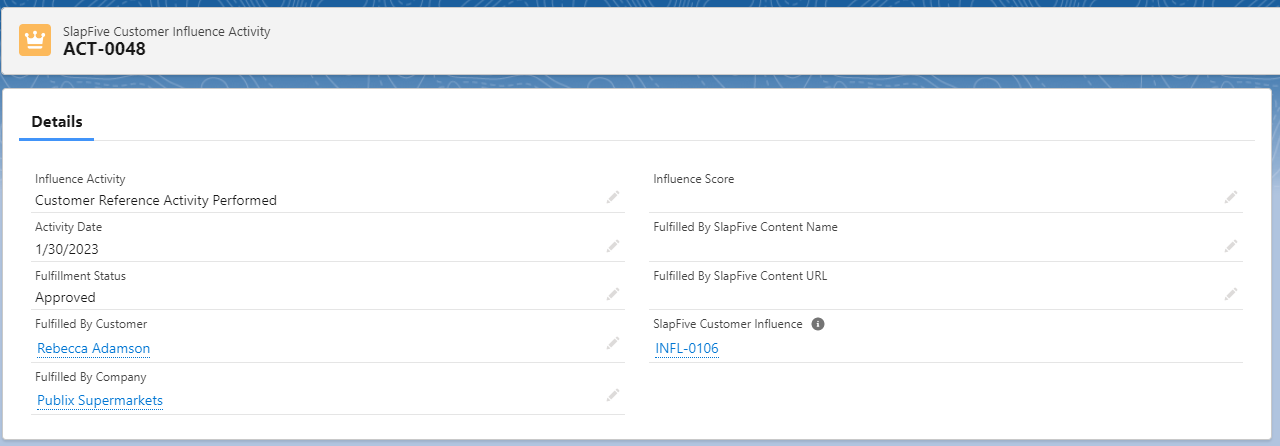
* [ ] Click the **Influence Activity Number** for one of the **SlapFive Customer Influence Activity** records to open the **Details** screen for that record, and you'll see all the values you entered in SlapFive for this Fulfillment Member.&#x20;

<figure><img src="https://2901117923-files.gitbook.io/~/files/v0/b/gitbook-x-prod.appspot.com/o/spaces%2FlkxMKaLwhXP9Cu98jtv6%2Fuploads%2Fpwmtcsnkvz7vaixsBuak%2FScreenshot%202023-01-27%20174630.png?alt=media&#x26;token=10813f1d-ee30-4b1a-b818-ce5e376ebe34" alt=""><figcaption><p>Details for SlapFive Customer Influence Activity</p></figcaption></figure>

* [ ] In SlapFive, open the same Request and update one of the Fulfillment Members to have a **Fulfillment Status** of *Completed*.
* [ ] In Salesforce, go to the **Details** screen for the **SlapFive Customer Influence Activity** and you will see the **Fulfillment Status** is *Completed*, and if you're using the **Influence Scoring Model**, you'll see a number in the **Influence Score** field.

### SlapFive Fulfillment Board creates/updates SlapFive Customer Influence Activity in Salesforce

* [ ] In SlapFive, go to the **Requests** tab and open the Request from the earlier test.
* [ ] Click the **Select Fulfillment Boards** button, select a Fulfillment Board to add to the Request, and click the **Save and Close** button.
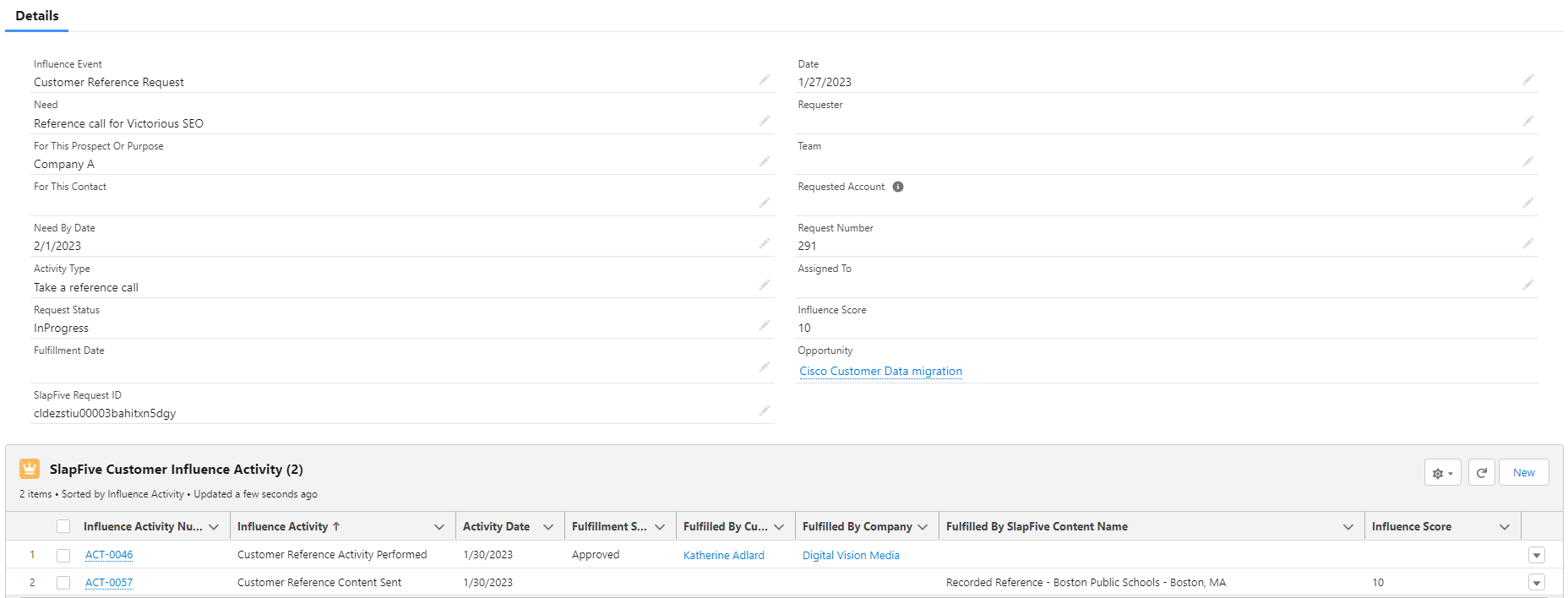
* [ ] In Salesforce, go to the **Details** page for the **SlapFive Customer Influence** record from the earlier test, and you'll see a record for the Fulfillment Board in the **SlapFive Customer Influence Activity** related list at the bottom of the screen. If you're using the **Influence Scoring Model**, you'll see a number in the **Influence Score** field.

<figure><img src="https://2901117923-files.gitbook.io/~/files/v0/b/gitbook-x-prod.appspot.com/o/spaces%2FlkxMKaLwhXP9Cu98jtv6%2Fuploads%2FpRAOsS1CoX44TdaDp9n3%2FScreenshot%202023-01-30%20170348.png?alt=media&#x26;token=531d5498-ab18-4574-bd3d-47ac8c2cb133" alt=""><figcaption><p>SlapFive Customer Influence Activity related list</p></figcaption></figure>

### SlapFive Content Share from Salesforce Opportunity creates SlapFive Customer Influence in Salesforce

* [ ] In Salesforce, go to an Opportunity, click the **View Case Studies** button to see the list of Boards, and click the **Share** button next to one of the Boards.
* [ ] In the **Enter Recipient** area, enter your email address, name and company. Choose a Contact Role from the **Select Recipient from Contact List** dropdown list, and click the **Send** button.

<figure><img src="https://2901117923-files.gitbook.io/~/files/v0/b/gitbook-x-prod.appspot.com/o/spaces%2FlkxMKaLwhXP9Cu98jtv6%2Fuploads%2FzIsOJ0YnbAdUm1XUHqIT%2FScreenshot%202023-01-29%20083745.png?alt=media&#x26;token=34d0fc0b-cf20-4339-ab49-a3d6ab8b193e" alt=""><figcaption><p>SlapFive Content Share screen</p></figcaption></figure>

* [ ] In Salesforce, go back to the same Opportunity, go to the **SlapFive Customer Influence** related list, and you will see a new **SlapFive Customer Influence** record for that Share.&#x20;

<figure><img src="https://2901117923-files.gitbook.io/~/files/v0/b/gitbook-x-prod.appspot.com/o/spaces%2FlkxMKaLwhXP9Cu98jtv6%2Fuploads%2FjSIiw6SAm5utxLZjimBf%2FScreenshot%202023-01-29%20140610.png?alt=media&#x26;token=8417360a-4bbb-4c02-a7d9-05836533e70f" alt=""><figcaption><p>SlapFive Customer Influence related list with new record for Share</p></figcaption></figure>

### SlapFive Content View by Recipient of a Content Share from Salesforce Opportunity creates SlapFive Customer Influence Activity in Salesforce

* [ ] Go to your email inbox and open the email that was sent to you by the content share.
* [ ] Click the Board link in that email.
* [ ] In Salesforce, go to the **Details** screen for the **SlapFive Customer Influence** record for the Content Share and you'll see a record for Content View in the **SlapFive Customer Influence Activity** related list at the bottom of the screen, and if you're using the **Influence Scoring Model**, you'll see a number in the **Influence Score** field.&#x20;

<figure><img src="https://2901117923-files.gitbook.io/~/files/v0/b/gitbook-x-prod.appspot.com/o/spaces%2FlkxMKaLwhXP9Cu98jtv6%2Fuploads%2Fq9pUwGg0h7Flxwl8dXsH%2FScreenshot%202023-01-29%20141308.png?alt=media&#x26;token=25a5303b-4eb6-4990-be18-ecb6d5aad8b0" alt=""><figcaption><p>SlapFive Customer Influence Activity related list</p></figcaption></figure>

### SlapFive Customer Activity creates/updates SlapFive Customer Activity in Salesforce

* [ ] In SlapFive, go to the **Member Dashboard** for any Member that has a valid Salesforce Contact ID specified.
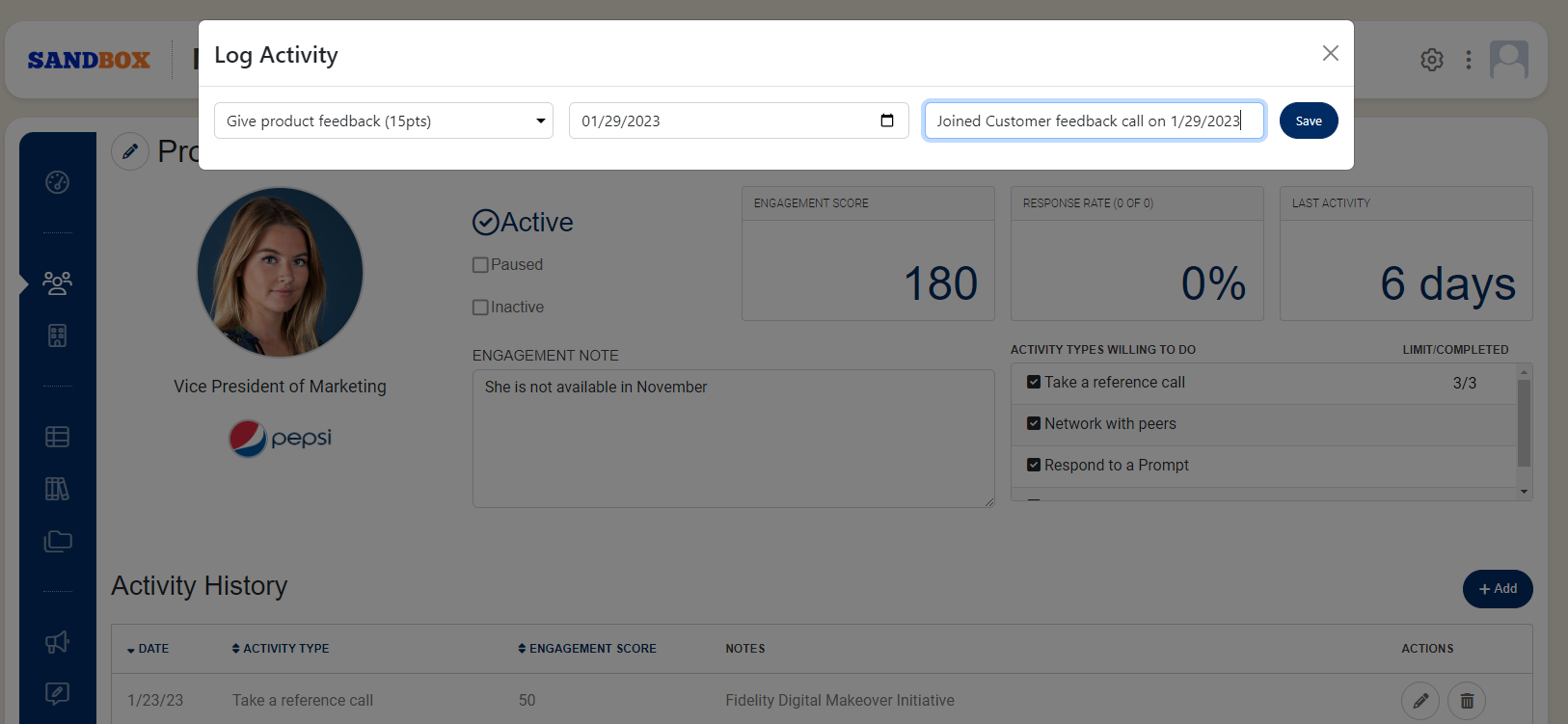
* [ ] In the **Activity History** section, click the **Add** button, fill out the pop-up form, and click the **Save** button to create a new Activity record.

<figure><img src="https://2901117923-files.gitbook.io/~/files/v0/b/gitbook-x-prod.appspot.com/o/spaces%2FlkxMKaLwhXP9Cu98jtv6%2Fuploads%2FucfoGXcE5B1eIGnt3WoX%2FScreenshot%202023-01-29%20142302.png?alt=media&#x26;token=45cf5575-8ae5-4ace-915c-ab8938a70376" alt=""><figcaption><p>Create new Activity screen in SlapFive</p></figcaption></figure>

* [ ] In Salesforce, open the **Contact** record for the Member, go to the **SlapFive Customer Activity** related list, and you'll see the new **SlapFive Customer Activity** record.

<figure><img src="https://2901117923-files.gitbook.io/~/files/v0/b/gitbook-x-prod.appspot.com/o/spaces%2FlkxMKaLwhXP9Cu98jtv6%2Fuploads%2FW4OFJVjNgNYpA47O8SBi%2FScreenshot%202023-01-29%20142642.png?alt=media&#x26;token=127bc643-84a1-4967-a276-480e08955c96" alt=""><figcaption><p>SlapFive Customer Activities related list</p></figcaption></figure>