> For the complete documentation index, see [llms.txt](https://docs.slapfive.com/llms.txt). Markdown versions of documentation pages are available by appending `.md` to page URLs; this page is available as [Markdown](https://docs.slapfive.com/integrations/salesforce/slapfive-app-spring-2024-4.0-and-earlier-versions/recommend-the-best-reference-customers-for-a-request.md).
# Recommend the best reference customers for a Request
This section covers how to enable Salesforce users to see and select from recommended reference customers when submitting a Request from a Salesforce Opportunity.
## Sample Use Case
Let's say that when your salespeople are asked by a buyer to speak with a reference, they typically want reference customers who are in the same industry and tier as the buyer, and who own the products that the buyer is evaluating.
SlapFive enables you to configure the Salesforce App and SlapFive Settings so that your requesters can see a list of recommended Members and/or Companies that are in the same industry and tier, and that own those products. The requester can relax any of those criteria, and add more filter criteria. The requesters can then select from the list of recommended Members and/or Companies to add them to the Request as Fulfillment Company/Member records.
The reference manager can then see and adjust the recommendation criteria, and begin the fulfillment process by reviewing the Companies and/or Members selected by the requester.
## Configure the SlapFive Salesforce App Setup
You can configure up to 5 fields from the Salesforce Opportunity and Account records to pass to the Request as recommendation criteria.
1. In Salesforce Setup, go to **Custom Settings**, select **Manage** next to *SlapFive Settings*, and click the **Edit** button.
2. Use the **Matching Field 1, 2, 3, 4 and 5 fields** to specify the Account and/or Opportunity fields to use as recommendation criteria, by entering the *object\_name.field\_name*. Continuing our sample use case, to match on each of these fields, we would enter:
* [ ] **The Account custom field called Tier:** *Account.Tier\_\_c*
* [ ] **The Account standard field called Industry:** *Account.Industry*
* [ ] **The Products specified on the Opportunity:** *OpportunityLineItem.Product*
3. Click the **Save** button.
## Configure the SlapFive Settings
In SlapFive **Client Settings**, you specify whether you want the requesters to see recommended Members, Companies, or both, and you connect the **Matching Fields 1..5** that you specified in Salesforce to the corresponding objects and fields in SlapFive.
1. In your SlapFive **Client Settings**, click the **Basic Settings** tab and scroll down until you see these two fields.
* [ ] **Allow Requesters to Select Companies:** Check this box if you want requesters to see recommended Companies.
* [ ] **Allow Requesters to Select Members:** Check this box if you want requesters to see recommended Members. Few SlapFive clients select this option.
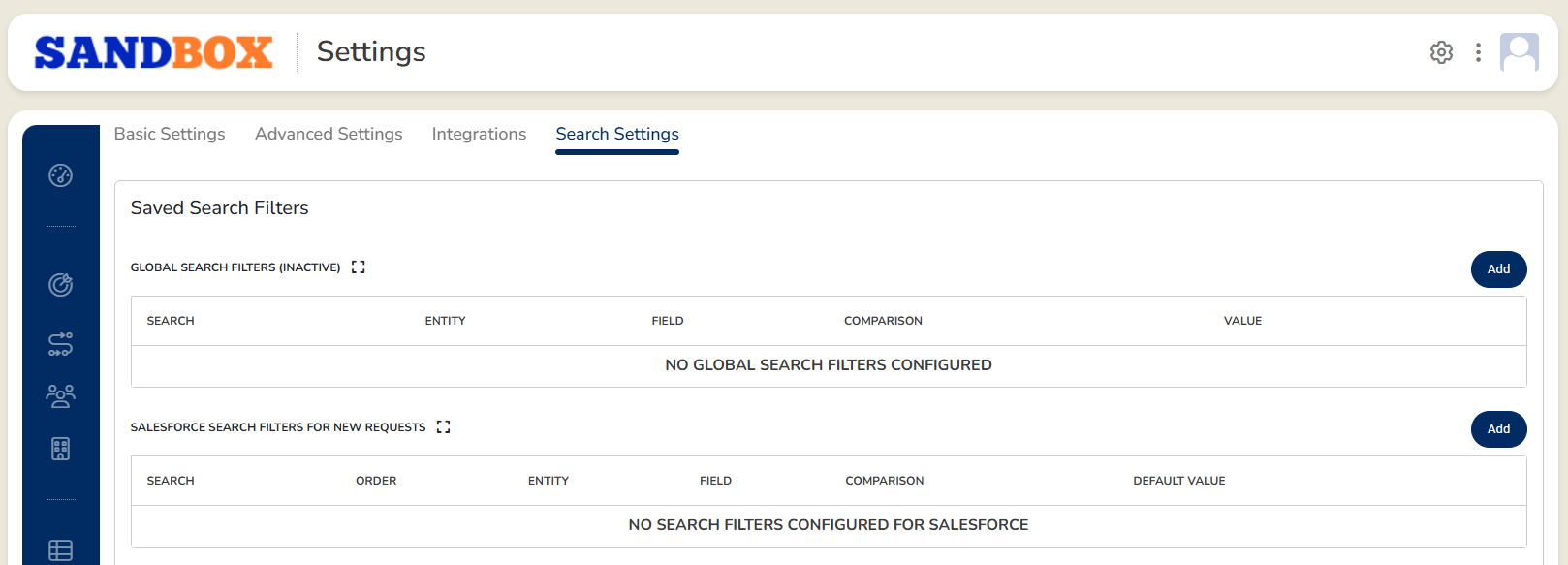
2. Click the **Search Settings** tab.
Search Settings tab
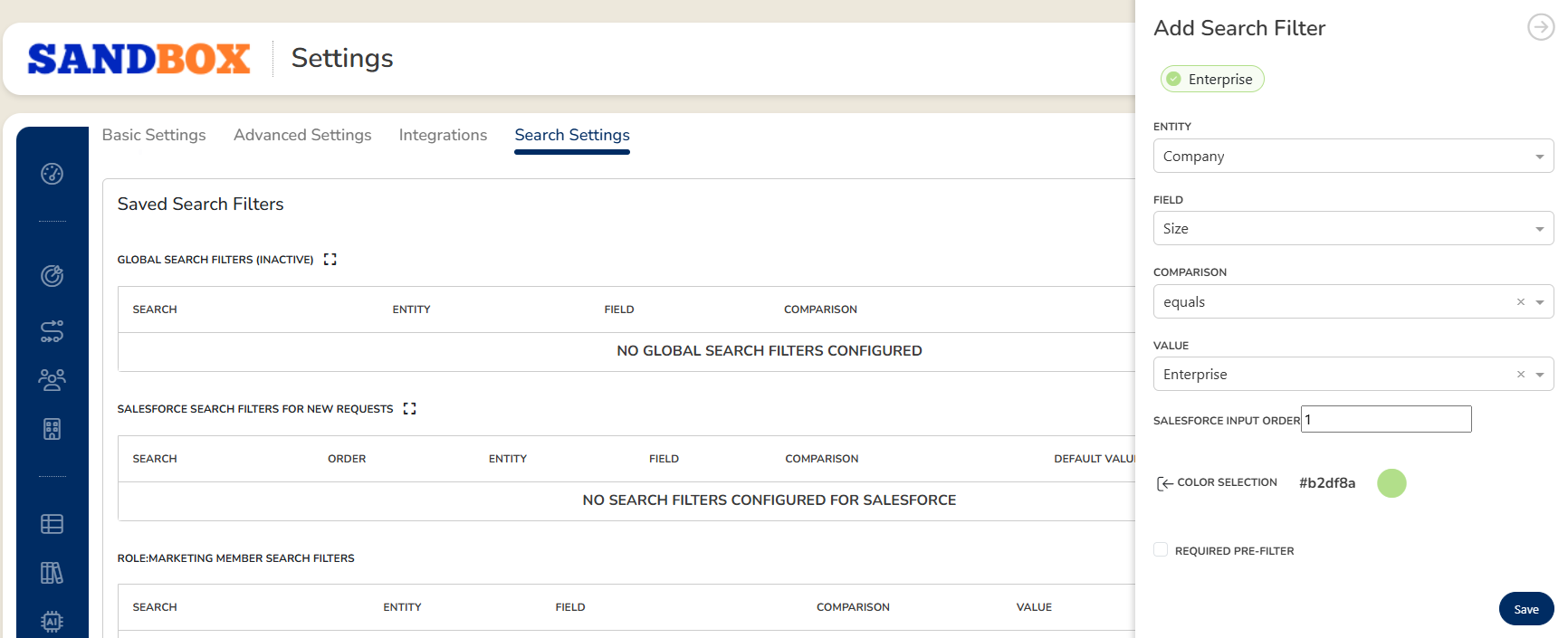
3. In the **Salesforce Search Filters for New Requests** section, you will add a Search Filter for each Matching Field 1..5 you defined in Salesforce Setup. Click the **Add** button, enter the values as follows and click the **Save** button:
Add Search Filter tray.
* [ ] **Entity:** Select the object that contains the field you want to match, in this case *Company*.
* [ ] **Field:** Select the field you want to match, in this case *Size*.
* [ ] **Comparison:** Select *equals*.
* [ ] **Value:** Select any value for this field that you want to be the default should the Salesforce Opportunity or Account not have a value for this field.
* [ ] **Salesforce Input Order:** Set this number to the corresponding Matching Field number in Salesforce Client Settings. In this case we are mapping this to **Matching Field 1**, so we select *1*.
4. Repeat Step 3 for each Matching Field 1..5.